
How do you indicate that a product has been discontinued?
Has a product been discontinued, with no replacement item? Then indicate this in My PS.
- Go to My PS and open My customers.
- Click the number of products next to the wholesaler or customer concerned.
- You’ll see an overview of the products that have no match. For the product concerned, go to Requested action and click Action required.
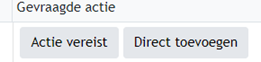
- A pop-up appears with the fields EAN CE, EAN HE and Add comment.
- Under Add comment, click No selection.
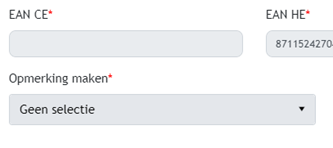
- Select Discontinued item without replacement from the drop-down list.
- Click Update to save the change.
What do you do if the EAN or item number is incorrect?
Does the product have no match because the EAN or item number is incorrect or missing? Then follow these steps:
- For the product, under Requested action, click Action required.
- Under Add comment, click No selection.
- Select Incorrect or missing EAN or Incorrect or missing item number.
- Enter the correct EAN or item number.
- Click Update.
The product stays in the overview until the wholesaler uploads a new product range list. The match can then be made again based on the updated data.
What do you do if the product isn’t in PS yet?
Is the product not yet in the PS database? Then add it via Data Entry.
Does the EAN of the product you added match the EAN on the wholesaler’s product range list? Then the product is matched automatically and disappears from the overview of missing products.
So make sure the GTIN (EAN) is entered correctly in Data Entry.