How do you create packaging?
First, prepare a package. You can then link this packaging to one or more products.
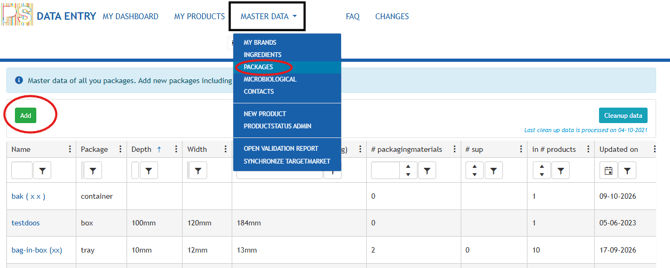
- In PS Data Entry, go to Master data > Packages.
- Click Add.
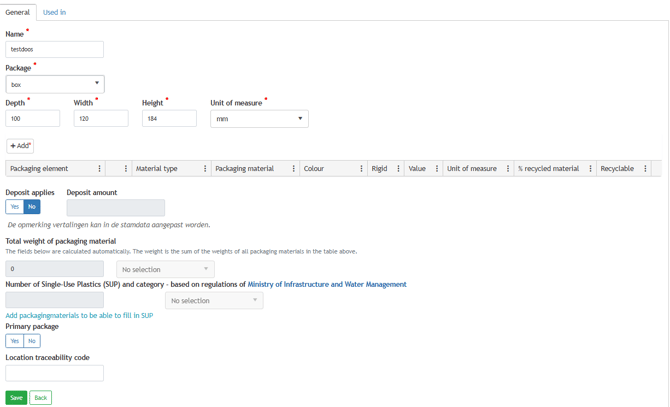
- Enter the name of the packaging .
- Under Package, select the type of packaging.
- Fill in the following information under Dimensions:
- depth;
- width;
- height;
- The Unit of measure: mm, cm, dm or m.
With an outer packaging/outer box, the depth, also known as the length, is always greater than the width.
Give the packaging a clear and recognizable name. This way you can easily find them later and link them to the right product or products.
How do you add a packaging element?
Packaging can consist of different parts. These parts are recorded in PS as packaging elements.
Examples of packaging elements are:
- a bottle;
- a cap;
- a label;
- a foil;
- a box;
- a lid.
For each packaging material, determine which packaging element it belongs to.
- Open the package.
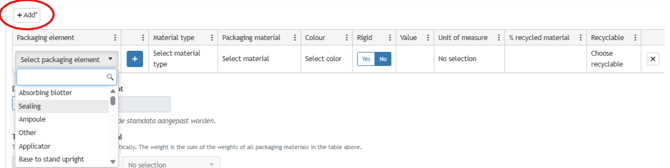
- Click Add.
- Select the appropriate part under Packaging element.
- Then select the material that makes up the element.
- Fill in the other packaging details.
What do you do if a packaging element consists of several materials?
Some packaging elements consist of multiple materials. Think, for example, of a beverage carton that is made up of cardboard, plastic and aluminum.
In this case, click the plus sign behind Packaging element.
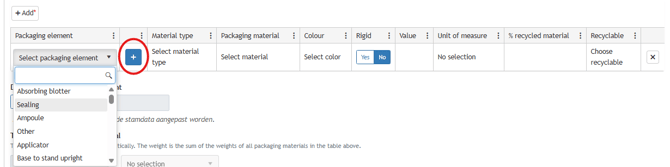
With the plus sign you add an extra line for an additional packaging material.
Repeat until all materials of the packaging element have been added.
Example:
Packaging element: beverage carton
- cardboard;
- plastic;
- Aluminum.
Only link materials to the same packaging element if they are part of that element together.
How do you select the packaging material?
First, select the correct Material type.
In the case of Packaging material , only the materials that fall within the chosen material type are then displayed.
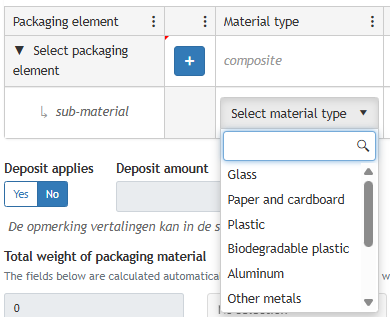
Check carefully whether you are selecting the right material. The chosen material is used, among other things, to determine the recyclability and material composition of the packaging.
When do you fill in Colour and Rigid?
For some packaging materials, you can enter additional properties:
- Colour
- Rigid
Fill in these fields if they apply to the material in question.
Are these properties not applicable or not mandatory? Then you can leave the fields empty. (you can't fill them in either)
Rigid indicates whether the packaging element retains its shape. For example, a bottle or container is usually rigid. A foil or wrapper is usually not rigid. This applies to certain packaging materials. If you can't fill it, it's not necessary.
How do you fill in the weight of a material?
Enter the weight of the packaging material under Value.
Under Unit of measure, select the appropriate weight unit.

Fill in the weight per material separately. Does a packaging element consist of multiple materials? Then determine the weight for each material.
How do you fill in the percentage of recycled material?
Enter the percentage of the content in the % recycled material field.
Example:
Does plastic packaging consist of 30% recycled plastic? Then enter 30%.
Please enter only the actual percentage of recycled content. Is this percentage not known? Then check this with the packaging supplier or in the technical specifications of the packaging.
How do you indicate recyclability?
Under Recyclable, select the category that matches the percentage of the total packaging weight that is recyclable.
|
Categories |
Recyclable |
|
Good |
95% or more |
|
Reasonable |
80% to 95% |
|
Limited |
70% to 80% |
|
Not |
Less than 70% |
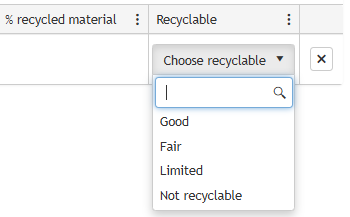
Please note that according to the current proposals of the PPWR, packaging with a recyclability of less than 70% may no longer be placed on the market from 2030.
How do you fill in the SUP category?
For packaging that falls under the Single Use Plastics (SUP) rules , an additional field is available.
Select which category of packaging is involved via the drop-down list.
Examples are:
- pouches and wrappers;
- food packaging;
- drinking cups.
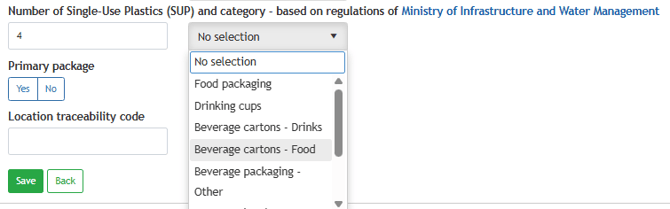
Please only fill in this field if the packaging is covered by SUP regulations. Find more information about the SUP regulations here.
How do you change an existing packaging?
You can change previously entered packaging.
Please note that packaging can be linked to multiple products. Therefore, first check whether the change also applies to the other linked products.
When changing an existing packaging, you must first select a packaging element . Then you can enter and save the packaging material.
Can't save the material? Then check whether:
- a packaging element is selected;
- a Material type has been chosen;
- a packaging material has been selected;
- all required fields have been completed;
- the weight and unit are entered;
- All packaging materials used are included.
Does the change only apply to one product? Then preferably create a new packaging. This prevents the packaging information of other products from being unintentionally modified.
What do you check before saving the packaging?
Before saving, please check:
- that the name and type of packaging are correct;
- that the dimensions are entered in the correct unit;
- whether all packaging elements have been added;
- that each material is linked to the correct packaging element;
- whether the weight per material is correct;
- whether the percentage of recycled material has been entered;
- whether the correct recyclability has been selected;
- whether the SUP category is filled in when applicable.
Then click Save.
Are you unable to save the packaging after trying the above?
First check that all mandatory fields have been filled in and that each material is linked to a packaging element.
Does the problem persist? Please contact the service desk support@psinfoodservice.com