---
title: How do you check your product data using Checks?
description: Controleer met Checks in PS in foodservice of je productgegevens compleet en correct zijn en ontdek hoe je openstaande validaties oplost.
---
[Skip to content](https://support.psinfoodservice.com/en/hoe-controleer-je-je-productgegevens-met-checks-0#main-content)

- [Data Entry](https://support.psinfoodservice.com/data-entry)
- [MijnPS](https://support.psinfoodservice.com/mijnps)
- [PS Impact Score](https://support.psinfoodservice.com/ps-impact-score)
- [Submitting data](https://support.psinfoodservice.com/data-aanleveren)
- [Account & access](https://support.psinfoodservice.com/account-toegang)
- [Billing & subscription](https://support.psinfoodservice.com/facturatie-abonnement)
Open main navigation
Close main navigation
- [Data Entry](https://support.psinfoodservice.com/data-entry)
- [MijnPS](https://support.psinfoodservice.com/mijnps)
- [PS Impact Score](https://support.psinfoodservice.com/ps-impact-score)
- [Submitting data](https://support.psinfoodservice.com/data-aanleveren)
- [Account & access](https://support.psinfoodservice.com/account-toegang)
- [Billing & subscription](https://support.psinfoodservice.com/facturatie-abonnement)
- [Contact us](https://psinfoodservice.com/contact/)
[Contact us](https://psinfoodservice.com/contact/)
How can we help you?
- There are no suggestions because the search field is empty.
1. [Info PS in foodservice](https://support.psinfoodservice.com/en?hsLang=en)
2. [Data entry](https://support.psinfoodservice.com/en/data-entry?hsLang=en)
3. [Checks](https://support.psinfoodservice.com/en/data-entry?hsLang=en#checks)
# How do you check your product data using Checks?
## Checks allows you to verify that your product details have been entered completely and correctly. In Checks, you can see which details are missing or have been entered incorrectly. You can use various validation sets to check your product details.
### How do you open the Checks?
1. Go to My products.
2. Select the product you wish to check.
3. Click on the coloured dot with the number on the right to open the Checks.
4. Select the validation set you wish to run.
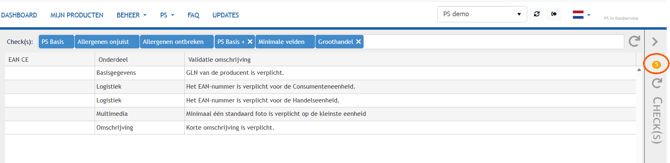
By default, the following validation sets are selected:
- PS Basic
- Incorrect allergens
- Missing allergens
- PS Basic +
- Minimum fields
Do you supply your product data to a wholesaler? If so, please select the ‘Wholesaler’ validation set and click on the refresh arrow.
If any details are missing, a list of validation messages will appear. If everything has been entered correctly, a green circle with a zero inside it will appear: the product can be approved or published.
### How do you read a validation?
In the overview, you will see two important elements for each validation:
**Section**
This indicates which section of the product data contains an issue.
**Validation description**
This describes what is missing or what has been entered incorrectly.
Use this description to determine which product data needs to be updated.
### How do you resolve a validation?
1. Review the **Validation description**.
2. Go to the indicated section of the product.
3. Enter the missing information or correct the existing data.
4. Return to **Checks**.
5. Click the **refresh arrow** to run the checks again.
If the information has been entered correctly, the corresponding validation will disappear from the overview.
### Why does a validation remain?
If a validation remains after you have updated the data, check whether:
- you have updated the correct field;
- all required information has been entered;
- you clicked **refresh**  after making the changes;
- you have selected the correct validation set.
### Validations for wholesalers
Do you want to check whether your product data meets a wholesaler's requirements? Select the **Wholesaler** validation set.
If you cannot see these validations, check whether the **Wholesaler** validation set is selected and then click **refresh**.
### Need help?
If a validation remains even though you have entered the data correctly, double-check the section mentioned in the validation.
- [Getting started](https://support.psinfoodservice.com/en/getting-started?hsLang=en#main-content)
- [Data Entry](https://support.psinfoodservice.com/en/getting-started?hsLang=en#data-entry)
- [Data entry](https://support.psinfoodservice.com/en/data-entry?hsLang=en#main-content)
- [Logistic](https://support.psinfoodservice.com/en/data-entry?hsLang=en#logistic)
- [Checks](https://support.psinfoodservice.com/en/data-entry?hsLang=en#checks)
- [My PS](https://support.psinfoodservice.com/en/my-ps?hsLang=en)
- [PS Impact Score](https://support.psinfoodservice.com/en/ps-impact-score?hsLang=en#main-content)
- [Entering](https://support.psinfoodservice.com/en/ps-impact-score?hsLang=en#entering)
- [Results](https://support.psinfoodservice.com/en/ps-impact-score?hsLang=en#results)
[](https://psinfoodservice.com/)
[mailto:email@email.com](mailto:email@email.com)
Copyright © 2026, PS in foodservice