---
title: How do you enter a new product in Data Entry?
description: Lees hoe je stap voor stap een nieuw product toevoegt in Data Entry, checks uitvoert en het product presenteert.
---
[Skip to content](https://support.psinfoodservice.com/en/-hoe-voeg-je-een-nieuw-product-toe-in-data-entry-0#main-content)

- [Data Entry](https://support.psinfoodservice.com/data-entry)
- [MijnPS](https://support.psinfoodservice.com/mijnps)
- [PS Impact Score](https://support.psinfoodservice.com/ps-impact-score)
- [Submitting data](https://support.psinfoodservice.com/data-aanleveren)
- [Account & access](https://support.psinfoodservice.com/account-toegang)
- [Billing & subscription](https://support.psinfoodservice.com/facturatie-abonnement)
Open main navigation
Close main navigation
- [Data Entry](https://support.psinfoodservice.com/data-entry)
- [MijnPS](https://support.psinfoodservice.com/mijnps)
- [PS Impact Score](https://support.psinfoodservice.com/ps-impact-score)
- [Submitting data](https://support.psinfoodservice.com/data-aanleveren)
- [Account & access](https://support.psinfoodservice.com/account-toegang)
- [Billing & subscription](https://support.psinfoodservice.com/facturatie-abonnement)
- [Contact us](https://psinfoodservice.com/contact/)
[Contact us](https://psinfoodservice.com/contact/)
How can we help you?
- There are no suggestions because the search field is empty.
1. [Info PS in foodservice](https://support.psinfoodservice.com/en?hsLang=en)
2. [Getting started](https://support.psinfoodservice.com/en/getting-started?hsLang=en)
3. [Data Entry](https://support.psinfoodservice.com/en/getting-started?hsLang=en#data-entry)
# How do you enter a new product in Data Entry?
## Would you like to add a new product to PS? In this article, you'll learn what information you need, how to enter the product, and how to make sure it's visible to customers and clients.
Before entering the data, make sure you have the following information on hand:
- the product name;
- the article number;
- the GTIN;
- the brand;
- information about the packages (CU, TU and pallet);
- the complete product specifications;
- a clear product image;
- a brief and detailed product description.
### 1. Go to Data Entry
Log in via Data Entry.
After logging in, you’ll be taken to the product overview. Here, you can search for, view, and manage existing products.
### 2. Check if the product already exists
Before creating a new product, always check whether it’s already listed in Data Entry.
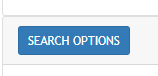
Click the blue “Search options” button in the top-left corner and search, for example, by:
- product name;
- article number;
- GTIN.
**3.**Check the brand and packaging
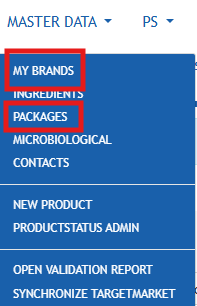
Before creating a new product, check whether the correct brand and the required packaging are already available in Data Entry. You can find this under “Master data.” If brands or packaging are not yet in Data Entry, add them first.
### 4. Create the new product
Are the brands and packaging listed in Data Entry? If so, go back to the product overview and click the green “New product” button in the upper-left corner.
Next, enter the product details as completely as possible, including:
- general product information;
- article number and GTIN;
- ingredients;
- allergens;
- nutrients;
- preparation and storage instructions;
- logistics information;
- packaging information;
You don’t have to complete the product in one go. You can save your progress and continue filling it out later.
In addition to the product specifications, it’s important to fill out the commercial information accurately as well.
Be sure to include:
- a clear and up-to-date product image;
- a brief product description;
- a detailed product description.
Clearly describe:
- what kind of product it is;
- what it can be used for;
- what its key features are;
- what sets the product apart from similar products.
This information helps buyers and customers understand the product more quickly. The commercial fields can also be used to enhance the product’s presentation and discoverability in PS channels and those of affiliated buyers.
### 5. Verify the product information using the checks
On the right side of the product screen, you’ll find the checks. These allow you to verify that required and important fields have been filled out.
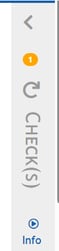
Some checks are enabled by default. You can add other checks yourself using the drop-down menu.

For each product, be sure to enable at least the following checks:
- PS Basic +;
- Minimum fields.
This allows you to verify that the most important product information has been entered in full.
Depending on the product, additional checks may be required:
- Select PL Bidfood for a Bidfood private-label product.
- Select PL Sligro for a Sligro private-label product.
- Select TM Belgie if the product is also to be published for the Belgian target market.
For the TM Belgie check, the required French translations must also be entered.
Resolve all notifications that appear for the selected checks. Did you make any changes to the data? If so, click the drop-down arrow next to the checks. Data Entry will then run the check again.
### 6. Save the product and publish it
Save the product once the information has been entered and the relevant checks no longer show any outstanding notifications.
Please note: After saving, the product will not automatically be visible to customers.
Here's how to make the product available:
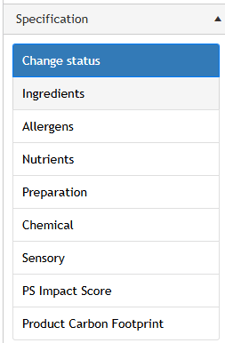
1. On the left side click **Change status**.
2. Choose **Publish**.
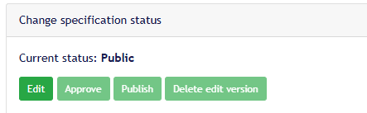
3. Accept the change.
Only after the product has been published can customers and buyers view and use the product specifications.
**Good to know**
- You can save a product partway through and complete it later.
- Always briefly check whether the product already exists before creating it.
- Create brands and packaging in advance whenever possible.
- Run the checks again after every important change.
- Only saved and published products are visible to customers.
- [Getting started](https://support.psinfoodservice.com/en/getting-started?hsLang=en#main-content)
- [Data Entry](https://support.psinfoodservice.com/en/getting-started?hsLang=en#data-entry)
- [Data entry](https://support.psinfoodservice.com/en/data-entry?hsLang=en#main-content)
- [Logistic](https://support.psinfoodservice.com/en/data-entry?hsLang=en#logistic)
- [Checks](https://support.psinfoodservice.com/en/data-entry?hsLang=en#checks)
- [My PS](https://support.psinfoodservice.com/en/my-ps?hsLang=en)
- [PS Impact Score](https://support.psinfoodservice.com/en/ps-impact-score?hsLang=en#main-content)
- [Entering](https://support.psinfoodservice.com/en/ps-impact-score?hsLang=en#entering)
- [Results](https://support.psinfoodservice.com/en/ps-impact-score?hsLang=en#results)
[](https://psinfoodservice.com/)
[mailto:email@email.com](mailto:email@email.com)
Copyright © 2026, PS in foodservice